Features
Live screen stream
The daemon captures your Mac's display as JPEG frames and sends them over WebSocket to the relay, which fans them out to every connected viewer. Frame rate defaults to 6 fps and can be raised with the FPS environment variable.
The daemon skips sending while the screen is static — so a locked, idle machine uses minimal bandwidth. When a new viewer connects they immediately receive the last cached frame.
Remote mouse and keyboard
Every gesture on the stream in the Mini App becomes a real event on your Mac:
- Click — a tap is a left click at the touched position; a long-press is a right click
- Zoom & pan — pinch to zoom up to 6×, drag to pan the image
- Scroll — swipe on the stream (at 1× zoom) scrolls; the faster you swipe, the more scroll steps are sent
- Type — text from the phone keyboard is pasted via the clipboard so any language and any Unicode character (Cyrillic, emoji, CJK) works
- Keys — Enter, Backspace, Tab, Escape and arrows are sent as key events; Shift/Ctrl/Alt/⌘ are toggleable modifier buttons above the keyboard
Audio
Audio streams in both directions using native Swift binaries:
- Mac → phone — system audio (everything your Mac plays) is captured and streamed to the Mini App
- Phone → Mac — hold the mic button in the Mini App to speak; your voice plays through the Mac's speakers
Camera
The daemon can stream the Mac's camera instead of (or instead of) the screen. Switch the visual source from the toggle in the Mini App or send /camera to the bot. Camera frames are never forwarded to view-only share guests — only the owner's session sees the camera.
AI tasks
The daemon runs a local Claude task runner. Send a natural-language instruction to the bot — for example:
run the test suite and summarize the failures
open the browser and go to the PR review
type "git status" and press Enter
The AI runs as a subprocess on your Mac, sees the screen, and can perform multi-step actions. All processing happens on your machine — the relay only forwards the trigger message.
Voice commands
Hold the microphone button in the Mini App to record a voice message. The daemon transcribes it locally using Whisper — a small voice model built into the daemon that runs right on your computer. No audio is sent anywhere for processing. The transcript is then handled as a text command.
View-only sharing
Generate a share link from the bot and send it to anyone. The recipient opens the link in Telegram and sees your screen in real time. They cannot control your machine and cannot see your camera — they get frames only.
See Sharing for details.
Controlling the app from the menu bar
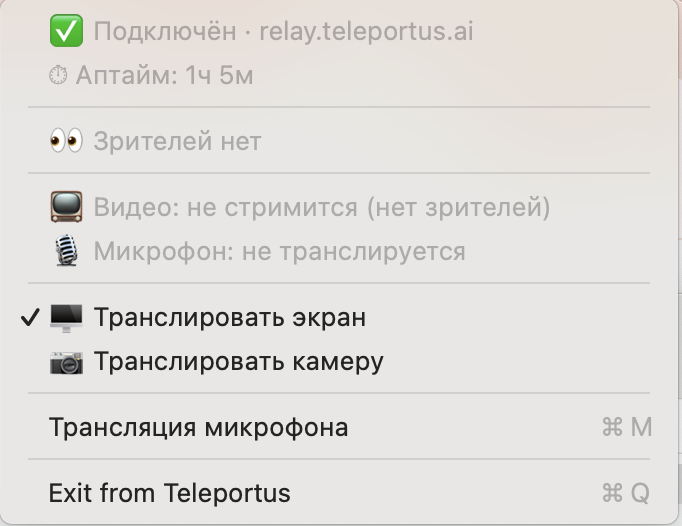
Once running, Teleportus lives in the macOS menu bar. The icon is your control panel for the daemon — click it to check status and toggle what's streaming.
- Connection status — whether the daemon is connected to the relay, and which one
- Uptime — how long the daemon has been running
- Viewers — how many people are watching right now
- Video and microphone status — whether each is currently streaming
- Stream the screen / Stream the camera — switch the source
- Broadcast microphone (⌘M) — send audio from your phone to the Mac
- Exit (⌘Q) — stop the daemon
Connection resilience
The daemon reconnects automatically on WebSocket drops. Exponential back-off starts at 3 seconds. Frames resume as soon as the connection is re-established.
Viewers receive the last cached frame immediately on connect so the stream never starts blank.