Overview
Teleportus gives you a live, controllable view of your Mac inside Telegram — no VPN, no extra app on your phone. This page explains the three-piece architecture and links to every section of the documentation.
How it works
Your Mac                  Edge relay               Your phone (Telegram)
──────────────────        ─────────────────        ──────────────────────
Teleportus daemon   ───►  Relay server       ───►  Mini App (viewer)
  screen capture     WS    frames + input     WS    tap → input events
  input controller  ◄───                    ◄───   keyboard, scroll
  audio / camera                                    audio, camera switch
  local AI runner
Daemon — runs on the machine you want to reach. Captures the screen via a Swift binary, applies mouse/keyboard/scroll input via nut-js, streams audio both ways, and can run Claude tasks locally.
Relay — a WebSocket forwarder that stores nothing: frames and input just pass through it, encrypted in transit (WebSocket over TLS, wss://). Every connection is verified using Telegram's signed login data, so only your own Telegram account can connect.
Mini App — opens directly inside Telegram when you tap the Open Desktop button. Shows the live stream, translates your taps into input events, handles the camera/screen toggle and voice input.
Quick start
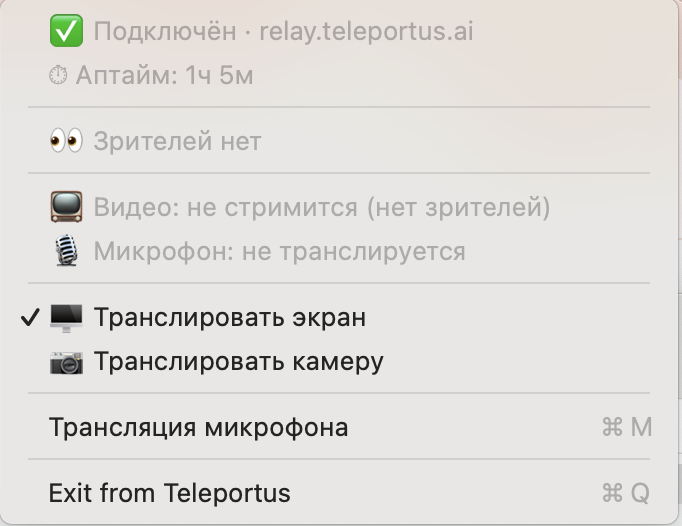
Install the daemon on the Mac you want to control. When it's running, a Teleportus icon appears in the macOS menu bar:
Open Telegram and send
/remoteto the bot — you'll get the Open Desktop button.Tap the button and your screen appears.
What you can do
| Action | How |
|---|---|
| See your screen live | Mini App streams JPEG frames in real time |
| Move the mouse and click | Tap anywhere on the stream |
| Type text | On-screen keyboard or phone keyboard |
| Scroll | Two-finger swipe on the stream |
| Switch to camera | Toggle in Mini App (screen ↔ camera) |
| Send voice commands | Hold mic button, speak |
| Run an AI task | Send a message to the bot describing the task |
| Share view-only | Share a link — no account needed |
Next steps
- Installation — set up the daemon
- Features — full feature reference
- Mini App interface — controls and gestures
- Bot commands — everything the bot understands
- Sharing — let someone watch your screen
- Architecture — protocol and internals
- Troubleshooting — common issues